Marking an Arrival As a No Show or As a Cancellation
Before date roll can occur, all outstanding expected arrival reservations must be processed. These are reservations for which the guest has not checked in or called to cancel the reservation. Fees associated with a no show or cancellation post as the user cancel or mark the reservation as a no show.
Perform the following steps to mark the arrival as no show or cancel:
Navigate to Night Audit ➜ Date Roll tab. The Date Roll tab is displayed.
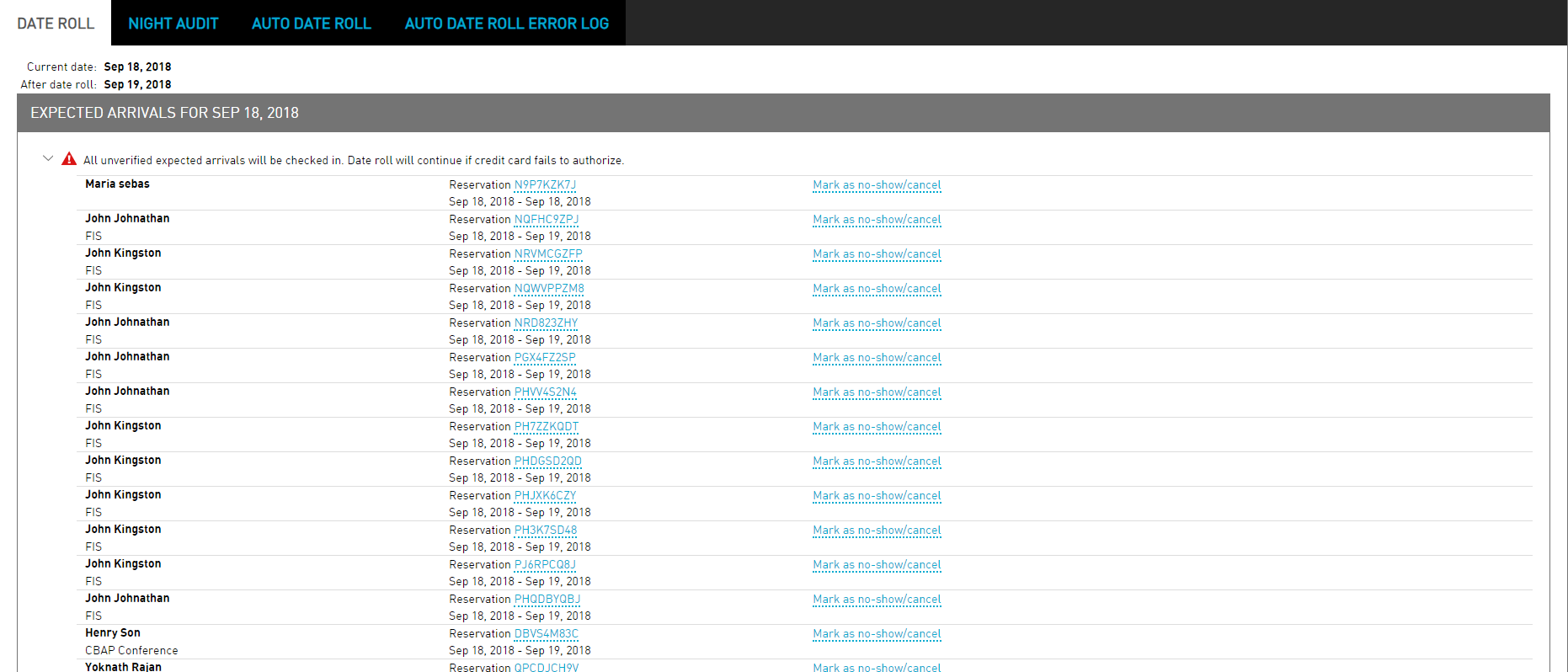
In the Expected Arrivals section, click Mark as no-show/cancel. The Cancel Reservation dialog box appears.
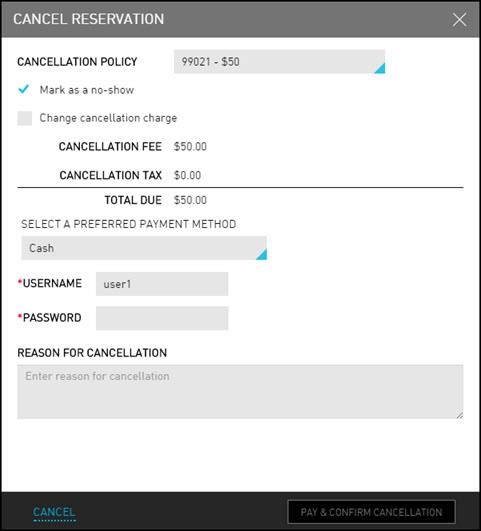
Refer to the following table and fill in the fields to cancel the reservation:
|
Field |
Description |
|---|---|
|
Cancellation Policy |
The cancellation policy to cancel the reservation when the user wants to override and change the policy that was in place at the time of booking. |
|
Change cancellation charge |
The charges applied when the cancellation policy is changed. This can be customized by Flat fee or Percentage. |
|
Cancellation Fee |
The cancellation fee amount. |
|
Cancellation Tax |
The tax for the cancellation, if applicable. |
|
Select A Preferred Payment Method |
The payment method used to pay the cancellation fee. |
|
Username |
The username for authorization. |
|
Password |
The password for authorization. |
|
Reason For Cancellation |
The reason for cancellation. |
Username and password may be required if the payment method the user choose is configured to require sign-in. Payments post against the credentials used to sign in to Stay.
Click Pay & Confirm Cancellation.